Product Update: Create Branded Email Journeys With Ease
Running a small business is a constant balancing act. You’re the CEO, the head of sales, and the marketing department all rolled into one. And while you’re busy wearing all those hats, making sure your brand looks consistent across every single email can be a huge headache.
But what if you could brand all your email journeys in one simple click?
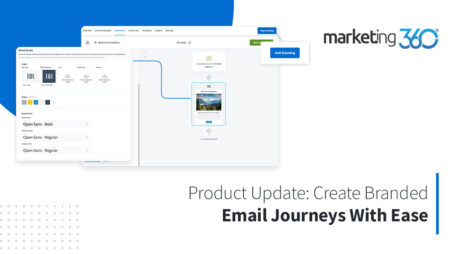
We’re excited to introduce a feature in Marketing 360® that does just that. Our new “Add Branding” button is designed to take the manual work out of email design so you can focus on what really matters: growing your business.
The power of consistency
Think about the brands you trust. They have a recognizable style, from their logo and colors to their tone of voice. This consistency builds confidence and helps customers feel more connected to their brand.
Your email journeys, such as your welcome series, lead nurturing campaigns, and post-purchase follow-ups, are crucial for building those relationships. With our new feature, your email journeys can look unified and professional, automatically.
How the “Add Branding” button works
It’s as simple as it sounds. The “Add Branding” button pulls in details from your Marketing 360® Brand Profile directly into your email journeys. Here’s what it automates for you:
Logos and URLs: Your main logo and website URL are automatically added to your emails.
Colors: Your email links, buttons, and sharing icon colors are updated to match your main brand color.
Fonts: Your email fonts are set to match the Heading, Subheading, and Paragraph styles from your Brand Profile.
Company Information: Your email footer details, including your business name and address, are updated from your Marketing 360 Global Settings.
This feature works on all existing emails within your automations that use our standard email templates and default formatting. You don’t have to go back and edit each one—the button does it all for you.
Ready to give it a try?
Ready to save time and make your emails look amazing? Complete your Brand Profile, then head to the Automations page in your Email app and click the “Add Branding” button. It’s that simple.
We believe that great marketing should be accessible and easy for every business, no matter the size. This new feature is just one more way Marketing 360 helps you simplify your workflow and build a stronger, more recognizable brand.
New to Marketing 360? Learn more about Marketing 360 and request plans and pricing today!